Note
You are not reading the most recent version of this documentation. See the latest version available.
Oracle VirtualBox
Quality Approver supports automated package testing on virtual machines, hosted on a local Oracle VirtualBox hypervisor. In order to start using Oracle VirtualBox virtual machines, perform the following steps.
STEP 1 – FULFILL THE REQUIREMENTS TO THE HYPERVISOR
- Oracle VirtualBox version is 6.0 or newer
Warning
Please use the VirtualBox 6.0 builds instead of the recent 6.1 version. We have detected the fundamental changes in the VirtualBox 6.1 interfaces that lead to unstable work. We are already working on this issue.
STEP 2 – FULFILL THE REQUIREMENTS TO THE VIRTUAL MACHINE
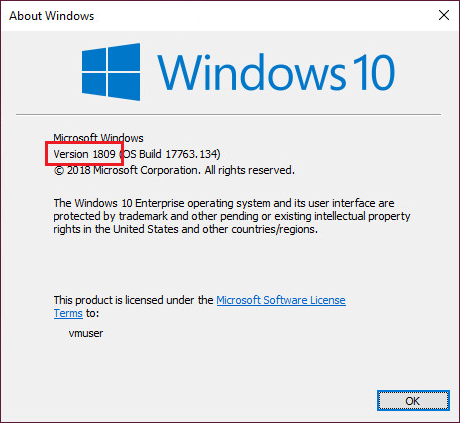
- The virtual machine is running Windows 10 version 1803 or newer
Note
It is recommended to use a clean Windows OS with a minimum set of preinstalled software in order to minimize the negative impact on testing results.
Check the Windows version by running winver command (Win + R).
- The user has the administrative privileges
The administrative privileges are required by Windows App Certification Kit for package testing.
STEP 3 – CONFIGURE THE VIRTUAL MACHINE
- Power on the virtual machine
Power on the virtual machine and login into the system with the user account which has the administrative privileges.
- Install VirtualBox Guest Additions on the virtual machine
The VirtualBox Guest Additions consist of device drivers and system applications that optimize the operating system for better performance and usability. If VirtualBox Guest Additions are installed, you could find the respective icon in the taskbar notification area.
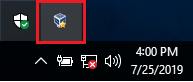
If additions are not installed, see Installing the VirtualBox Guest Additions online article.
- Install the Windows App Certification Kit on the virtual machine
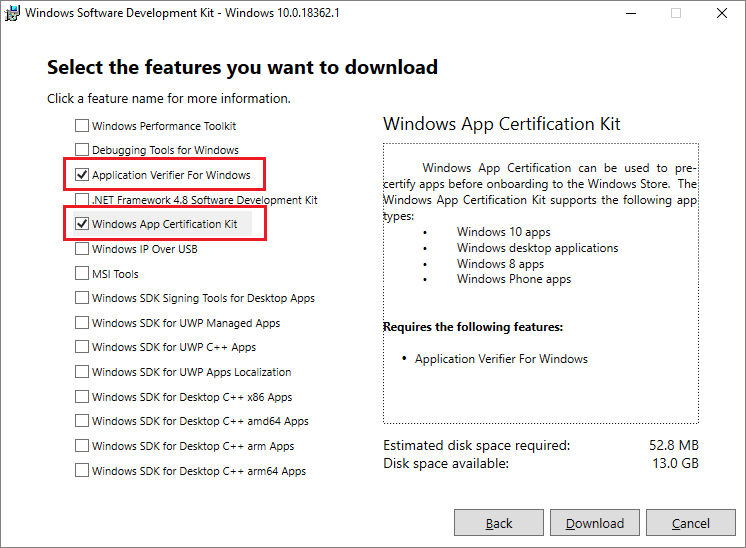
Windows App Certification Kit, a part of Windows SDK, is used for package testing. Download and run the Windows 10 SDK installer on the virtual machine and install the Windows App Certification Kit and Application Verifier For Windows.
- Run PACE Tuner on the virtual machine
PACE Tuner is a tool that configures the virtual machine for running the automated package testing. Copy the PACE Tuner installer from your system, where PACE is installed, to the virtual machine and complete the installation on the virtual machine. PACE Tuner installer could be found at
C:\Program Files (x86)\PACE
Suite\Quality Approver\PACE Tuner\Virtualbox\Oracle VirtualBox –
PACE Tuner.msi
(the path may differ, if you have changed the default PACE Suite installation directory).Warning
PACE Tuner changes the security features of the operating system and must NOT be run on your work station (PC). The uninstall mechanism of PACE Tuner does not restore the changed security settings. Run PACE Tuner only on the virtual machine, which can be restored to the previous state.
For Oracle VirtualBox virtual machine, PACE Tuner configures the following:
- Enables Developer mode
Windows App Certification Kit requires enabling this system feature.
- Enables automatic login in Windows
Windows App Certification Kit also requires a UI session for the proper testing. Automatic login secures this UI session.
- Disables User Account Control
Windows App Certification Kit requires the administrative privileges for running. Disabling the User Account Control (UAC) allows to run Windows App Certification Kit with the administrative privileges remotely in an unattended mode.
- Disables non-essential services
Update, Search, Offline files, Security center, and Diagnostic policy services produce lots of system noise that could influence the testing results.
- Installs PACE broker service
The PACE broker supports communication between Quality Approver and the virtual machine.
- Shut down the virtual machine
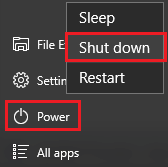
Shut down the operating system of the virtual machine. For this, select Start > Power > Shut down.
- Take a snapshot of the configured virtual machine
Take a snapshot of the current state of virtual machine. Further, the virtual machine will be automatically restored to this snapshot before and after testing process. For more details, see Taking, Restoring, and Deleting Snapshots.
STEP 4 – ADD THE CONFIGURED VIRTUAL MACHINE TO THE LIST IN QUALITY APPROVER
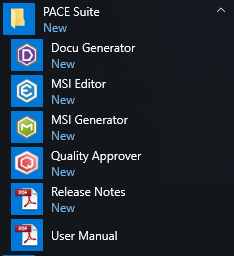
- Launch Quality Approver
Launch Quality Approver app on your computer. This application will run the tests on configured virtual machines.
- Add the configured virtual machine
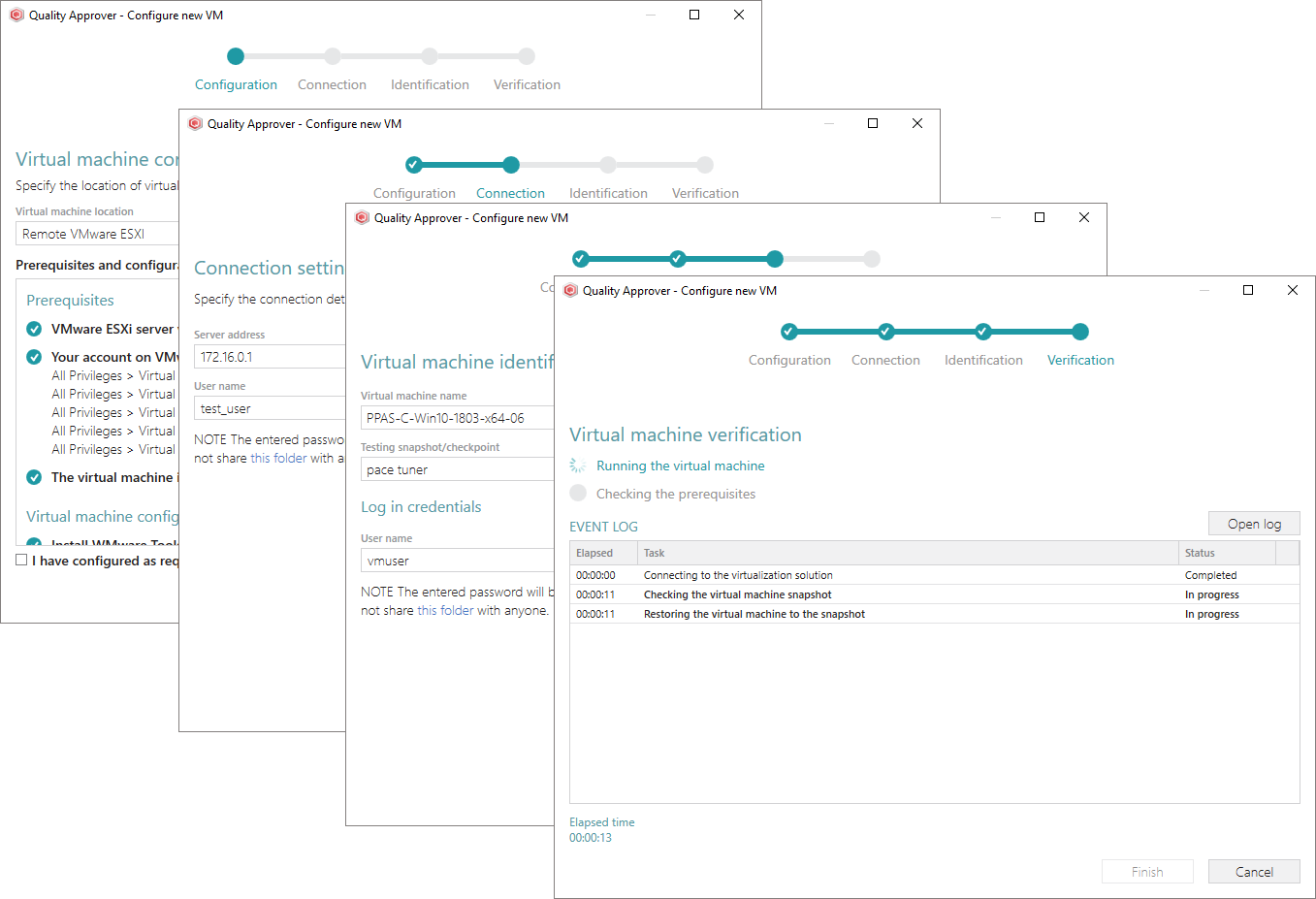
Click Configure new VM and complete the wizard steps. Select the proper virtual machine location, specify connection settings, virtual machine name, configured snapshot and so on. The wizard connects to the specified virtual machine, checks the prerequisites and only then adds this virtual machine to the list of Quality Approver.
Note
PACE Suite covers the whole range of application packaging tasks - learn more.
Try PACE Suite for free - 30 days no obligations unlimited trial with all functions unlocked.
