Note
You are not reading the most recent version of this documentation. See the latest version available.
Response MST
Response MST is an ordinary MST file that contains your ‘responses’ to the installation dialog options, input fileds, etc.
How it works: We simulate installation of the MSI package and you in this time chooses the necessary options. Then we analyze changes you have made and create an MST with your changes.
Typically such response MST is used to install an MSI package silently with the necessary options.
- Launch MSI Generator.
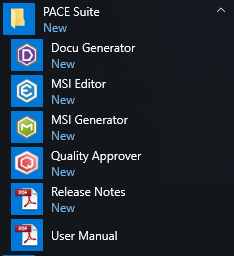
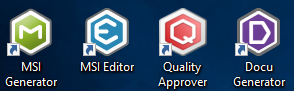
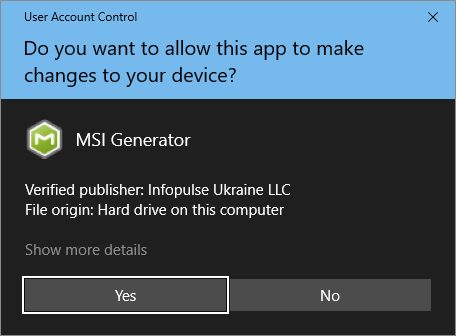
- If you have the User Account Control enabled, click Yes to launch the application.
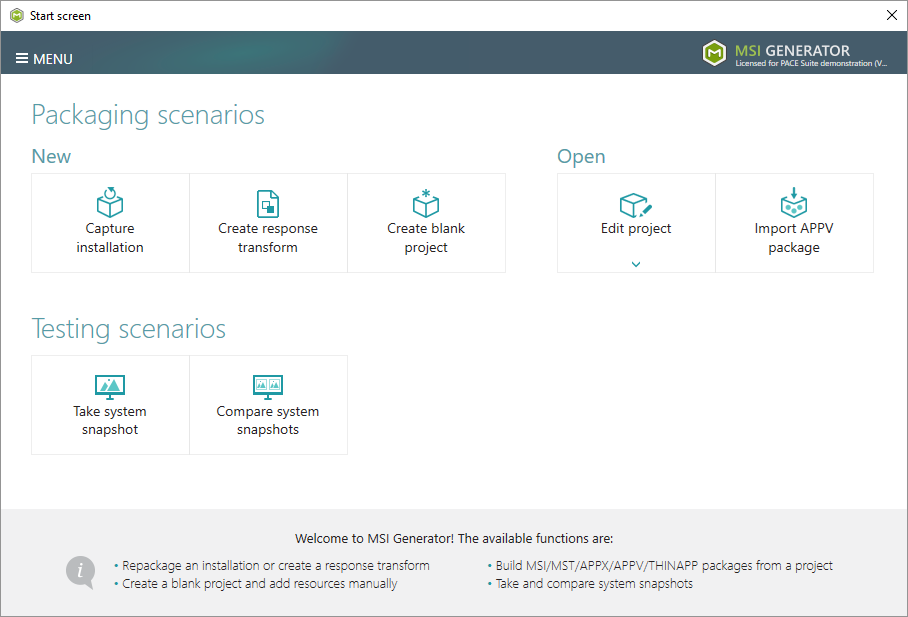
- Click Create response transform.
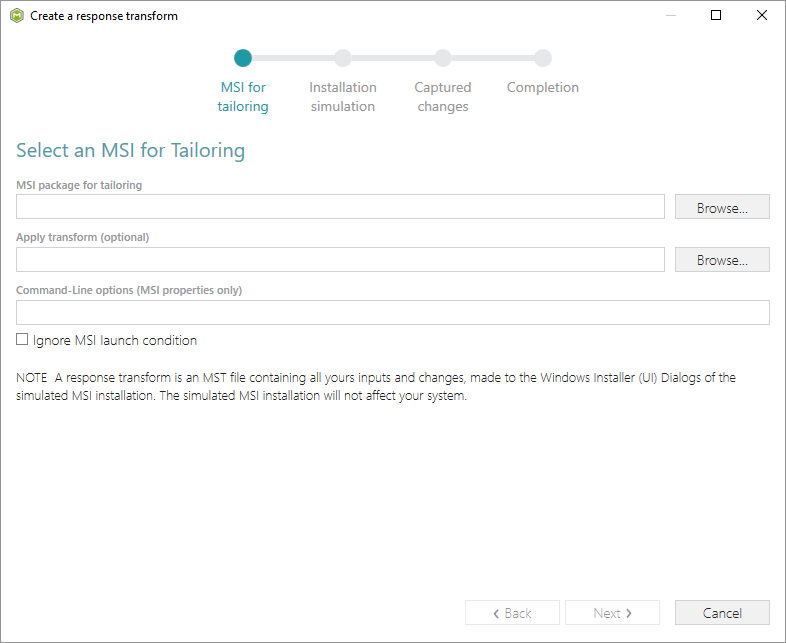
- Click Browse…, located next to the MSI package for tailoring field, to select an MSI package for tailoring. The MSI installation will be simulated and will not affect your real system.
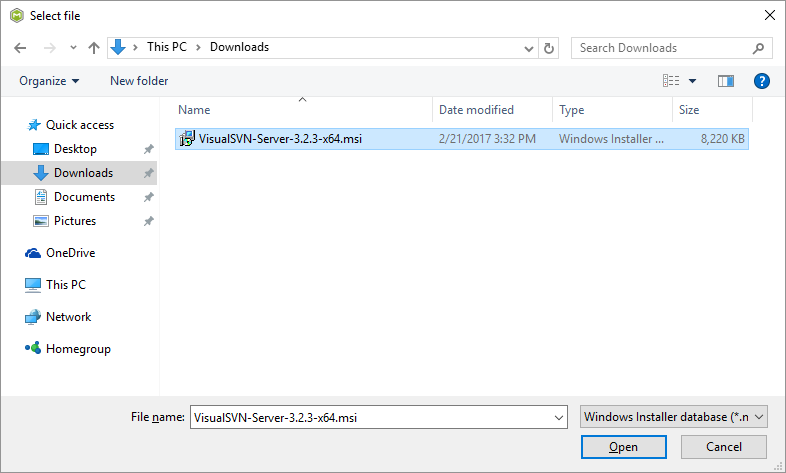
- Choose an MSI package (e.g. VisualSVN-Server-3.2.3-x64.msi), for which you want to create a response transform, and click Open.
- (optional) In the Apply transform you can specify an additional MST, which you want to apply to MSI during the installation simulation. Also, you can specify public properties to the Command-Line options field to set the necessary values before MSI tailoring. If the package can’t be run for the simulation due to some installation conditions are not satisfied, tick the Ignore MSI launch condition option to skip all ‘Launch Conditions’.
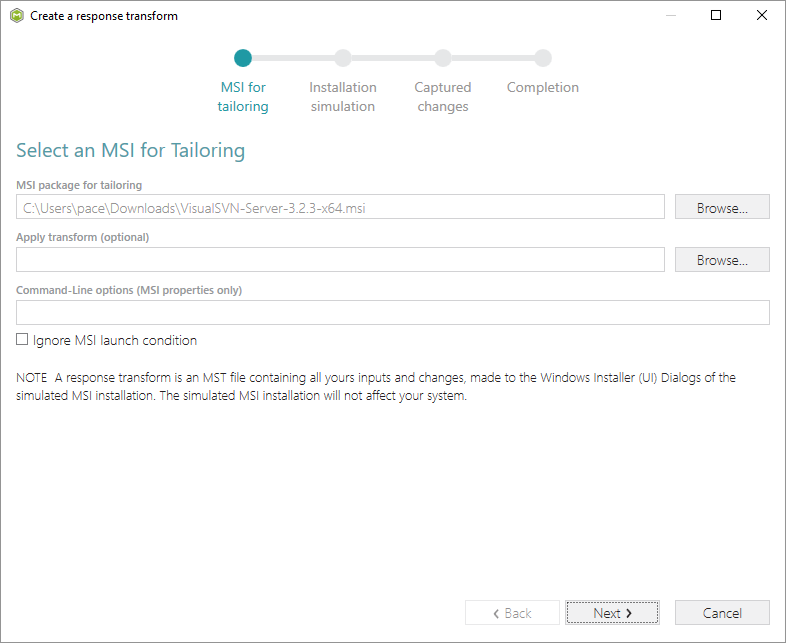
- Click Next to start the simulation.
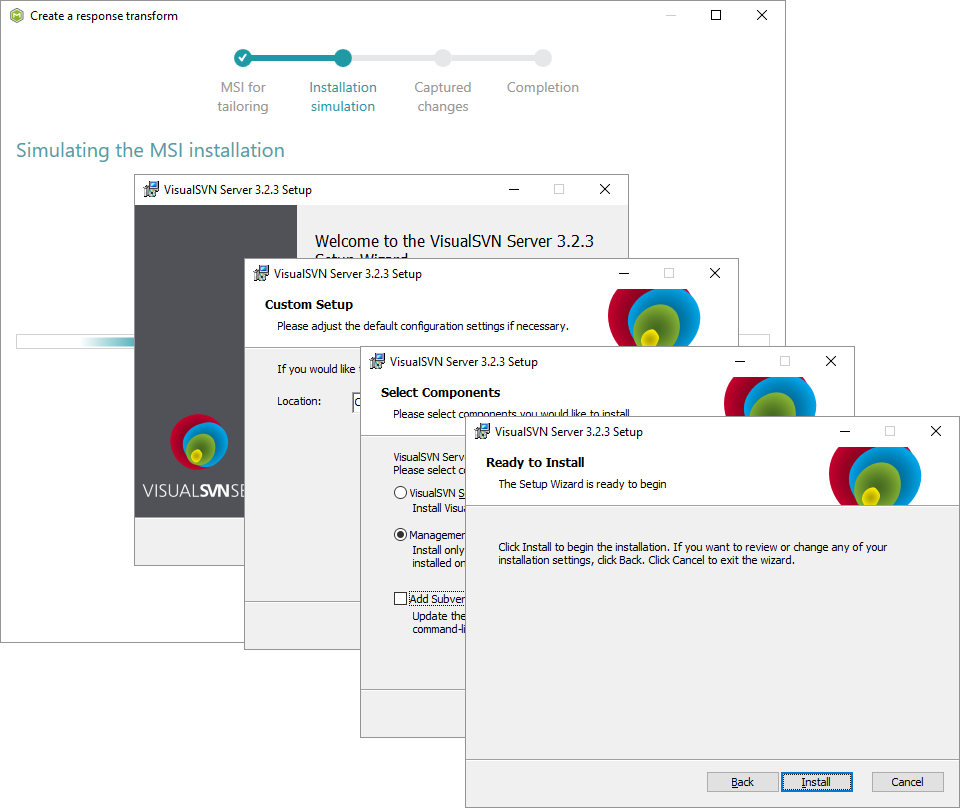
- Follow the installation dialogs and choose the necessary options.
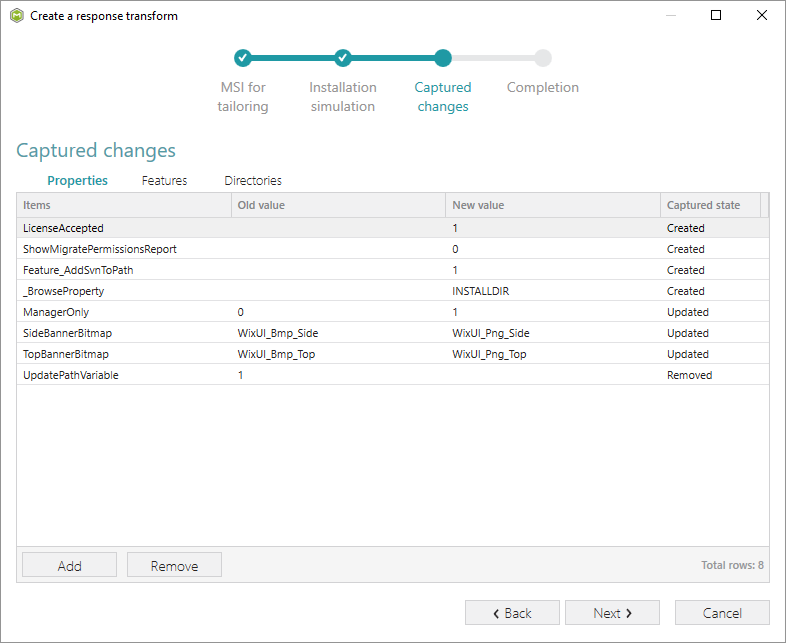
- Here you can review the captured results. Values are divided between the Properties, Features and Dicrectories tabs. Also, you can add extra values clicking Add, or remove unnecessary clicking Remove. Then, click Next to choose the saving options
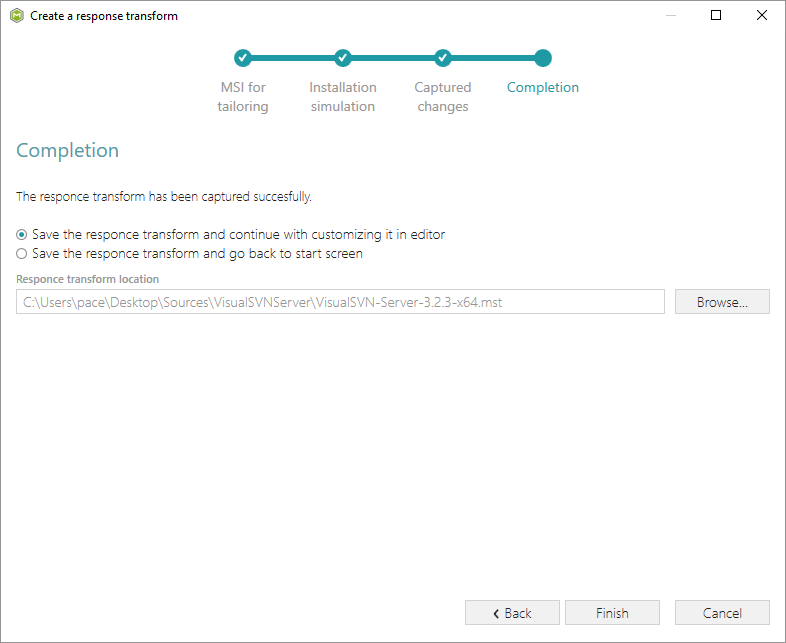
- Click Finish to complete the wizard.
With the default options, the created response MST will be opened in MSI Editor, where you can review the captured results against the MSI package.
Note
PACE Suite covers the whole range of application packaging tasks - learn more.
Try PACE Suite for free - 30 days no obligations unlimited trial with all functions unlocked.
