Note
You are not reading the most recent version of this documentation. See the latest version available.
THINAPP from scratch
Create a blank project, add files, registry, select package settings and build THINAPP package.
- Launch MSI Generator.
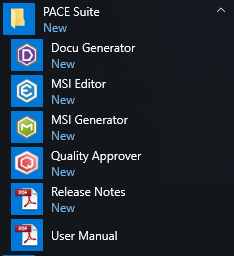
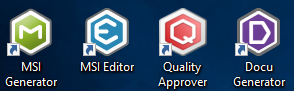
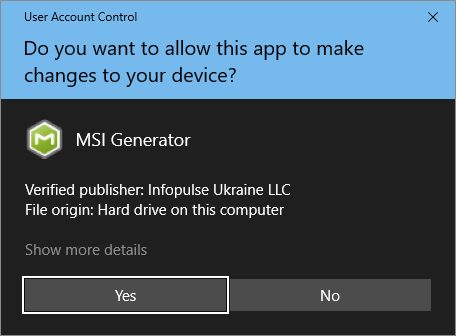
- If you have the User Account Control enabled, click Yes to launch the application.
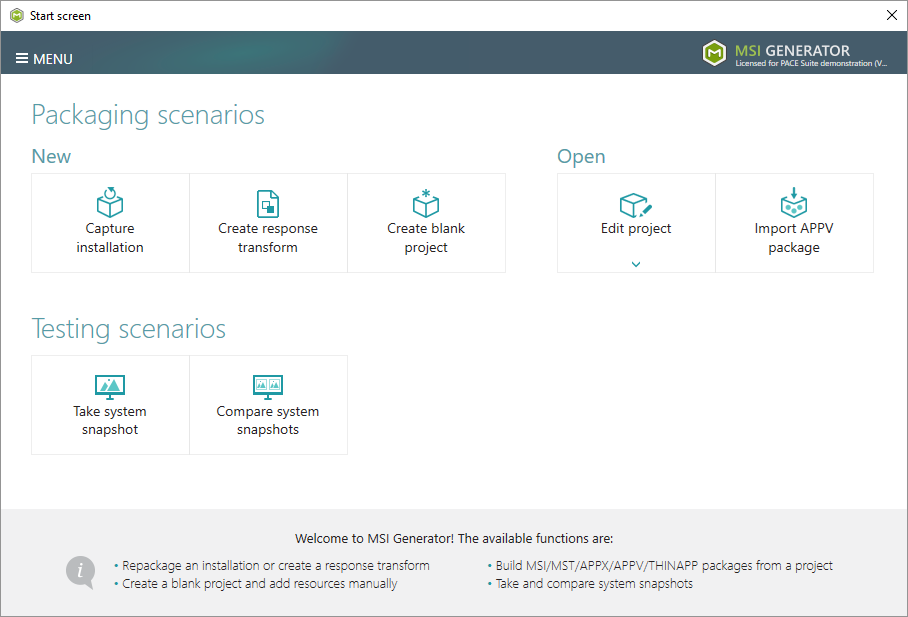
- Click Create blank project.
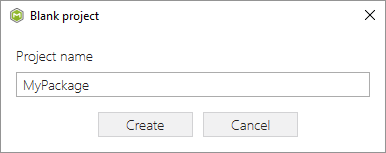
- Enter a project name and click Create.
- Now, import resources into your project, set product information and package settings:
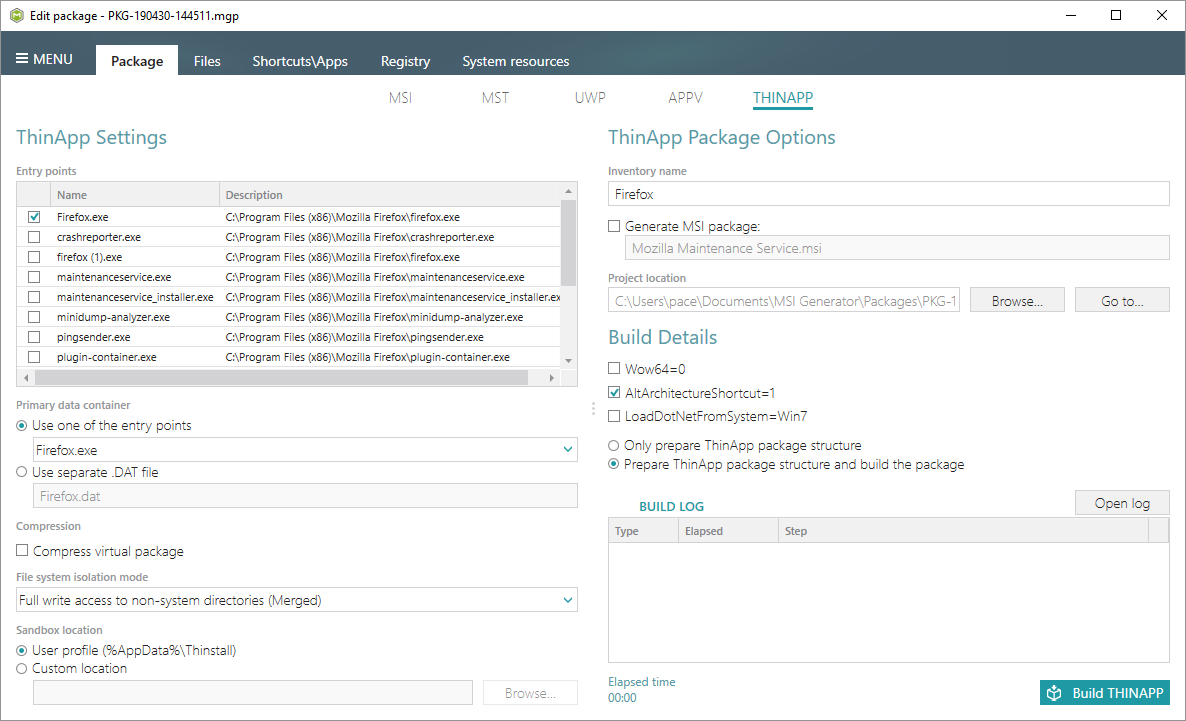
- To generate a THINAPP package navigate to the Package > THINAPP tab and click Build THINAPP.
Note
Ensure that your system has the required pre-requisite - VMware ThinApp (5.0.0/5.0.1/5.1.0/5.1.1/5.2.0) installed and activated with the valid license.
- Find your package in the “
ThinApp\bin” subfolder of the project folder. To open the project folder, click Go to…, located next to the Project location field.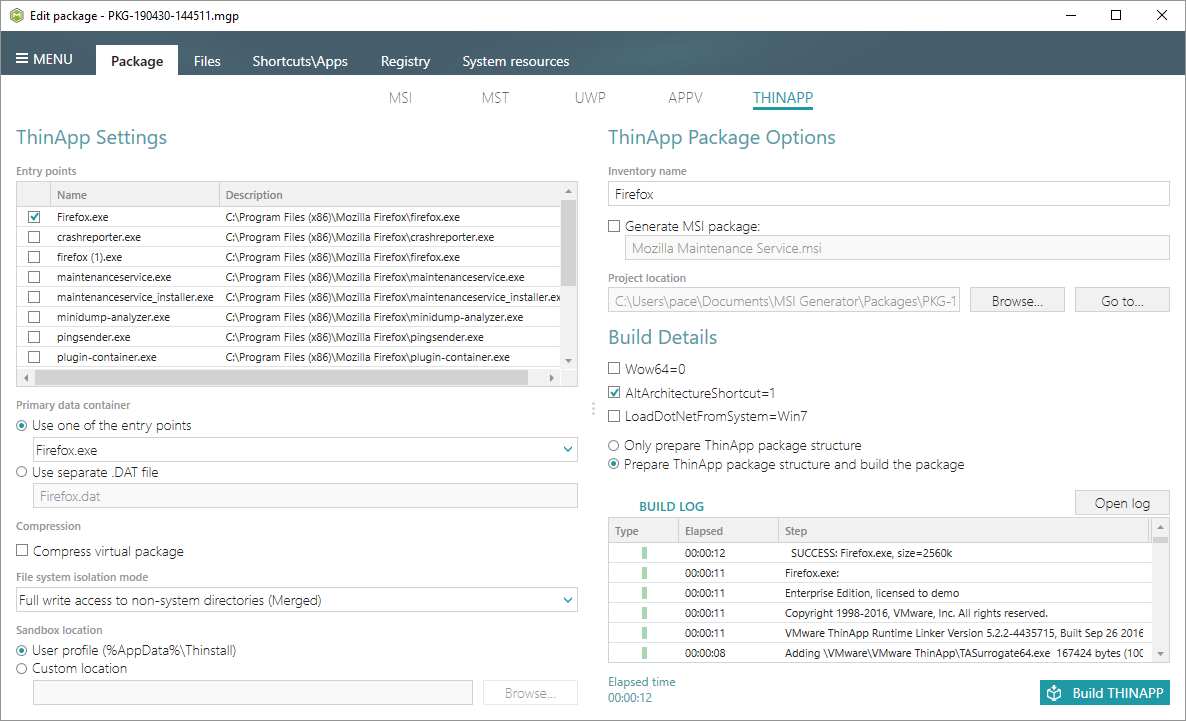
Note
PACE Suite covers the whole range of application packaging tasks - learn more.
Try PACE Suite for free - 30 days no obligations unlimited trial with all functions unlocked.
