Note
You are not reading the most recent version of this documentation. See the latest version available.
Repackage any installation to MSI
Repackage your source installation (EXE, MSI, VBS, CMD, etc.) into MSI package using MSI Generator. Along with files and registry, services and environment variables, you can capture the modified permissions to the file system and registry.
Video manual:
- Launch MSI Generator.
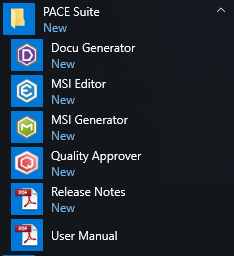
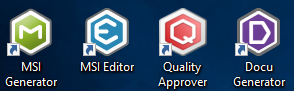
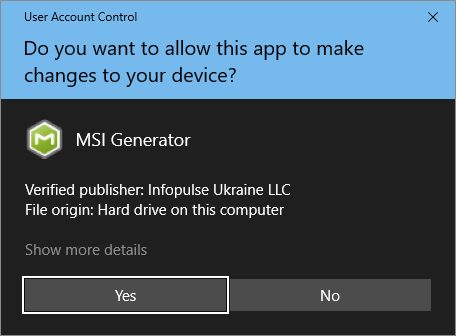
- If you have the User Account Control enabled, click Yes to launch the application.
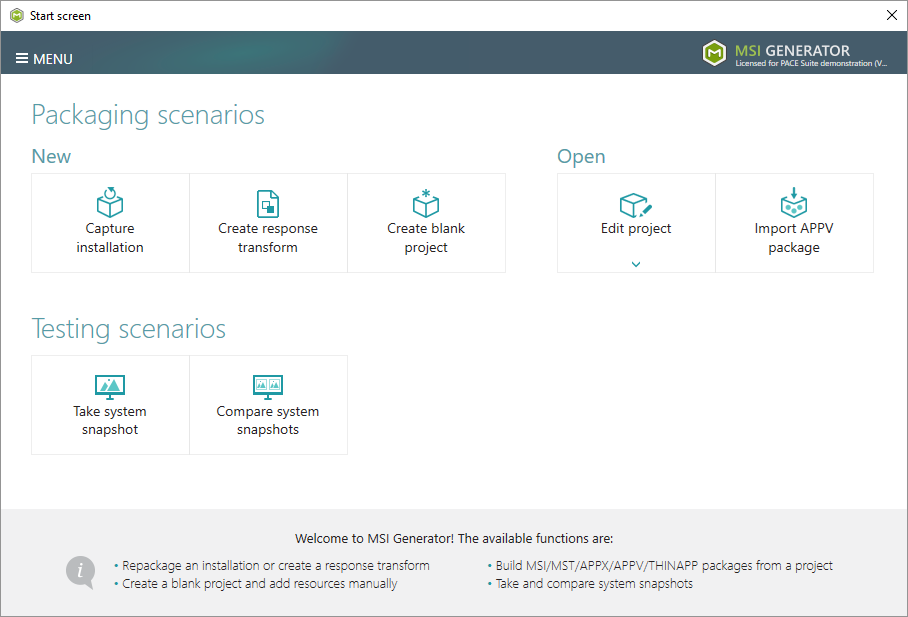
- Click Capture installation.
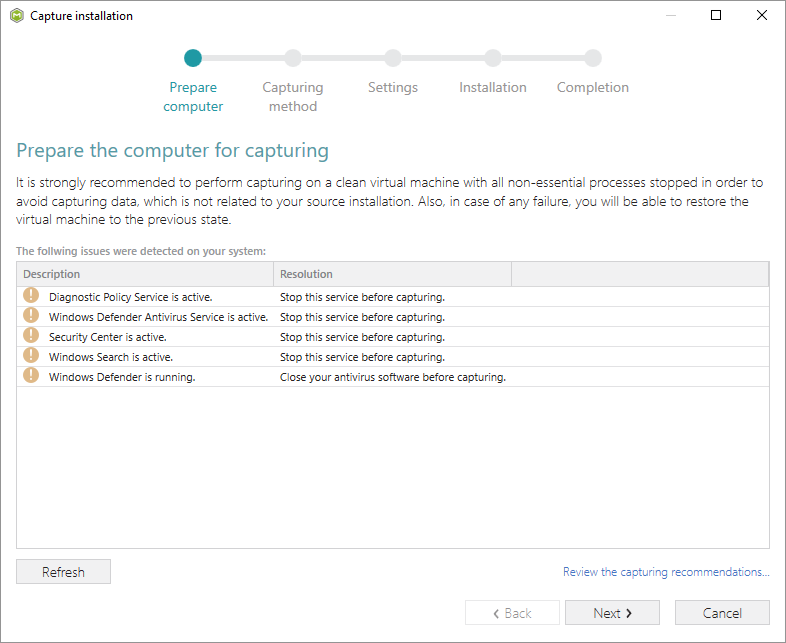
- Review the issues, which were detected on your system, and try to resolve them by closing the non-essential applications and stopping services. Thereafter, click Next >.
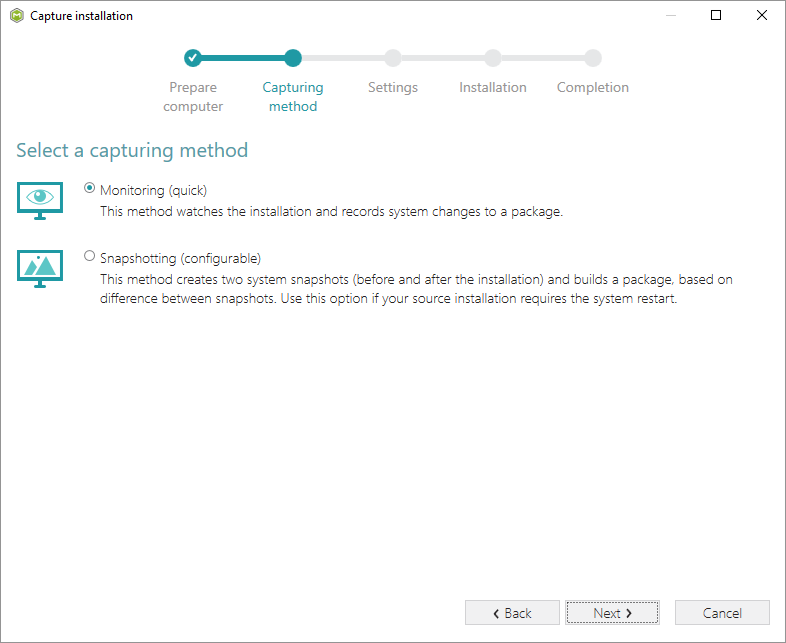
- Select the Monitoring method for the quicker capturing (or use the Snapshotting one if you need to continue capturing after the system restart) and click Next >.
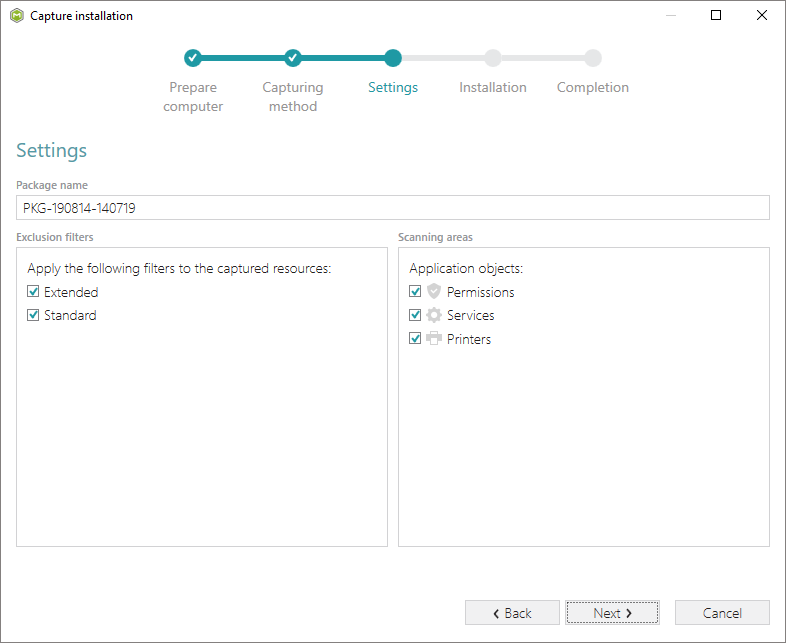
- Set (update) the package name. If needed, disable unnecessary exlusion filters and scanning areas. Click Next > to start the capturing.
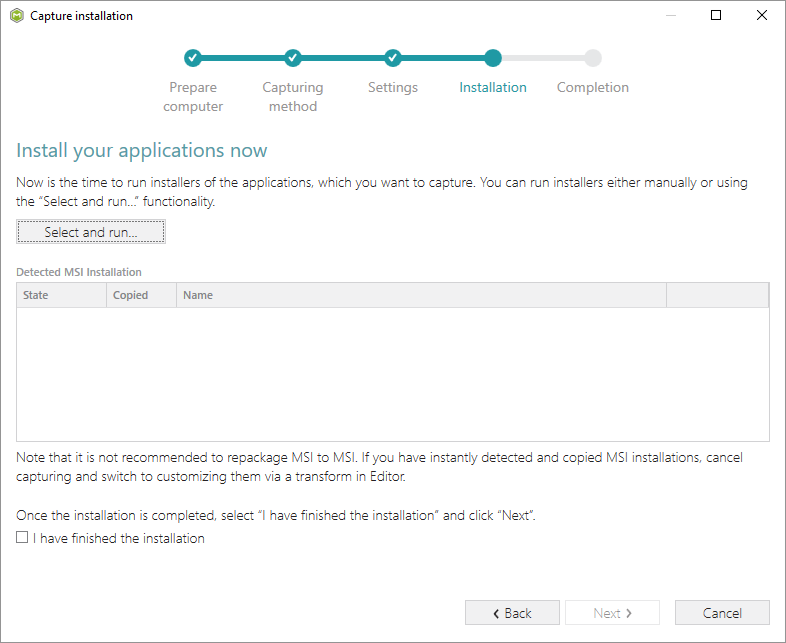
- Click Select and run… to choose source installation for repackaging.
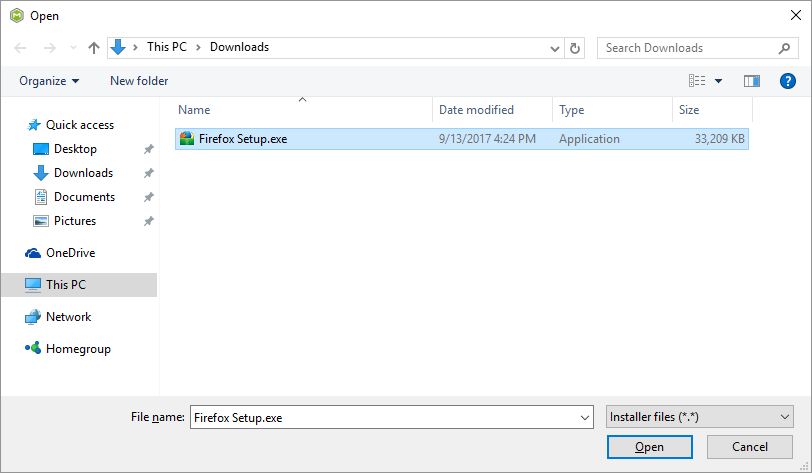
- Select the installer file (e.g. Firefox Setup.exe) and click Open.
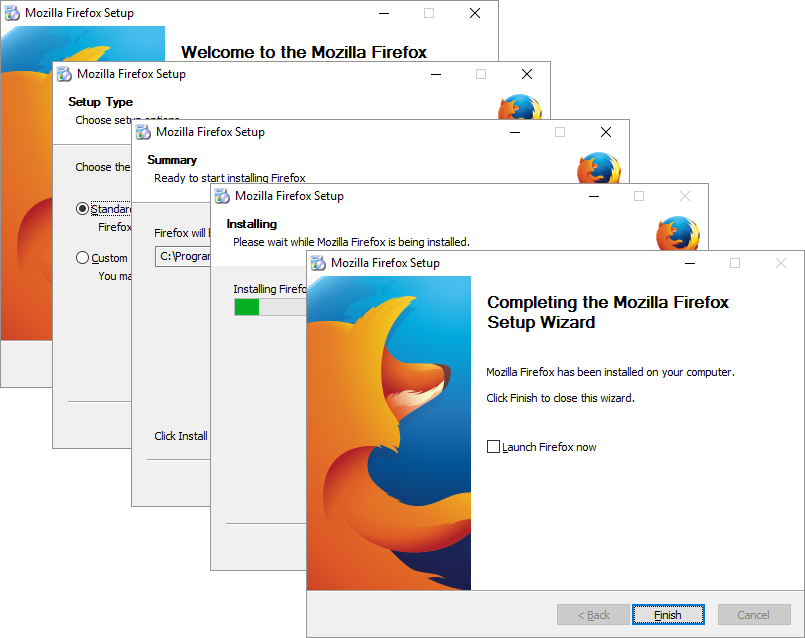
- Follow the installation dialogs of the launched source installation to complete it.
- (optional) Check that your source installation is not already an MSI package.
Note
Some EXE installers could contain embedded MSI packages.
Typically, vendor MSI packages should not be repackaged into MSI because it may lead to losing the original business logic.
If the Detected MSI installations tab contains the detected MSI file, consider editing the existing package with the MST instead of repackaging it.
- Now you can make any additional changes to the file system and registry, which you want to capture along with the source installation and include to the package. For instance, you can edit configuration files, import REG file to the system registry, change file, folder permissions, or launch the installed application in order to capture the necessary application configurations, like disabling updates and so on.
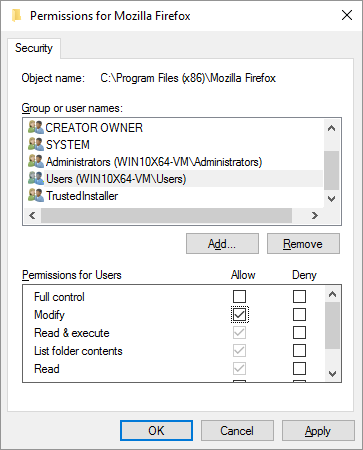
- For instance, to include permision changes for the specific folder into the package, select Properties from the Windows Explorer context menu of that folder.
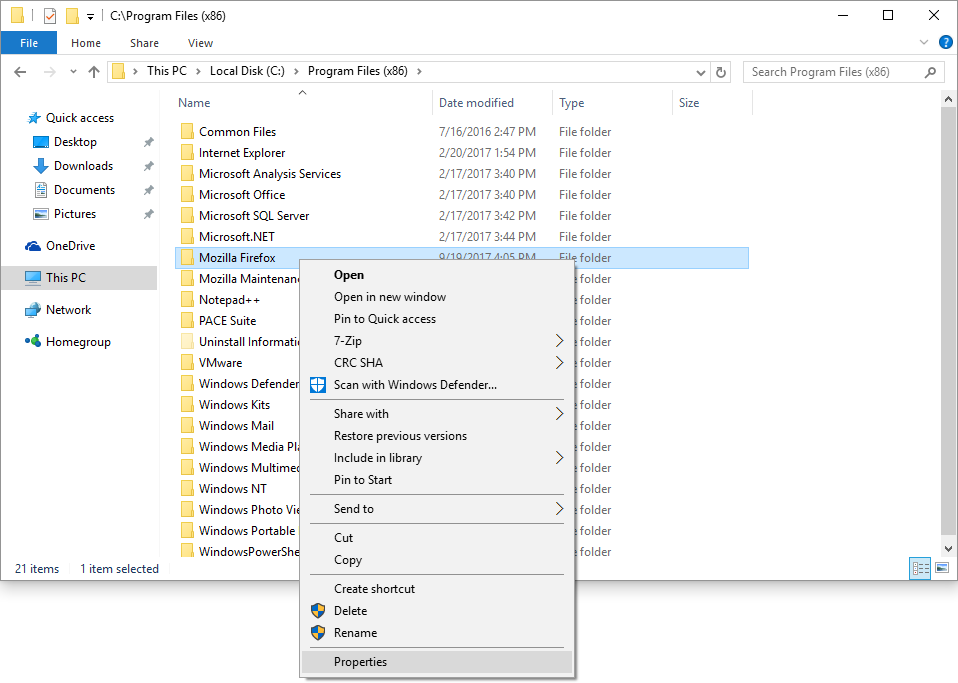
- Open the Security tab and click Edit.
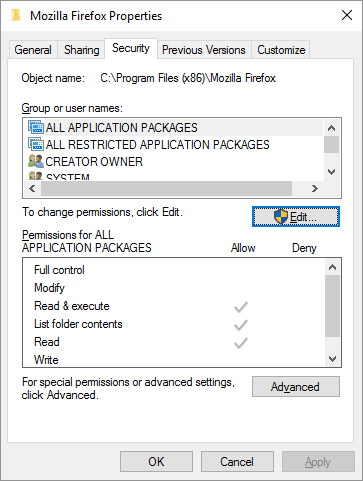
- Select a group or a user, for which you want to change the permissions and then select the necessary access rights. For example, lets set the ‘Write’ and the ‘Modify’ access rights for the ‘Users’ group. Then click Apply and OK.
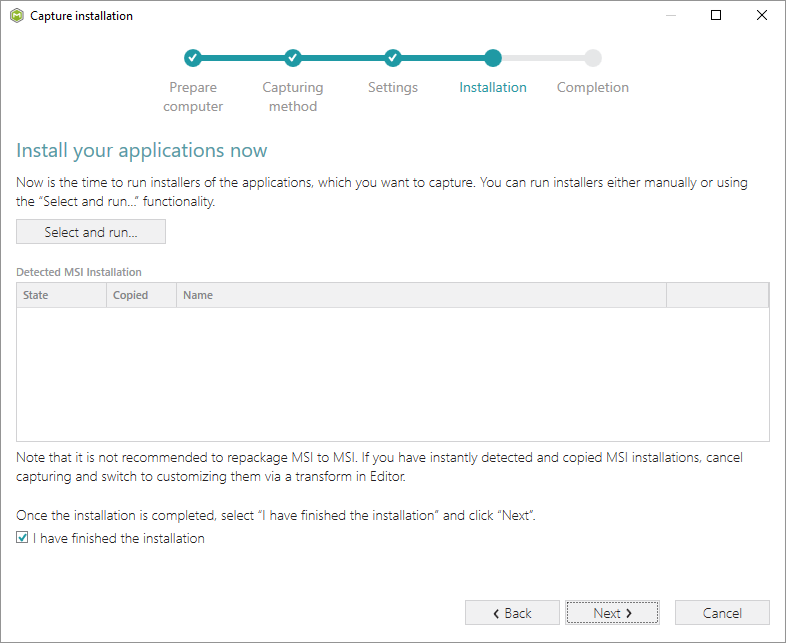
- Finally, to complete the capturing, select I have finished the installation and click Next >.
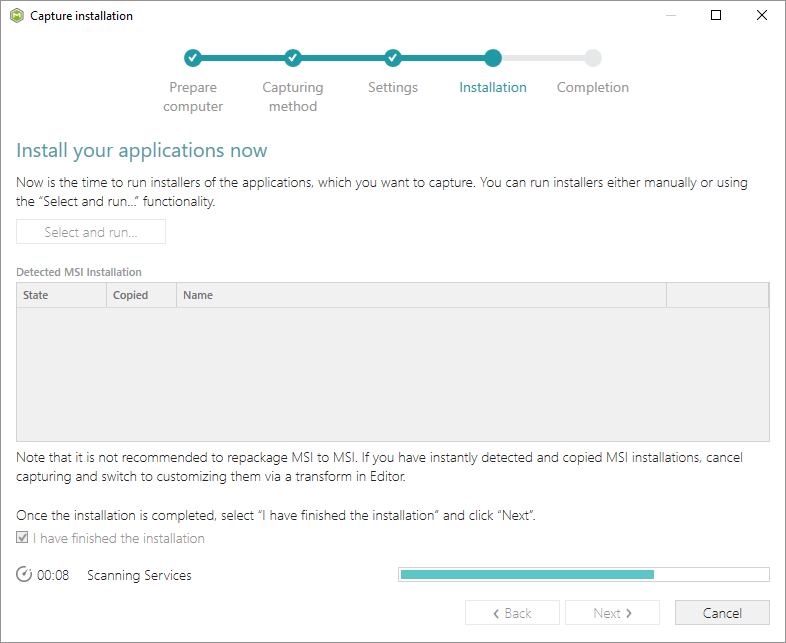
- Wait a little, while the capturing process is finishing, filtering captured data and creating the project.
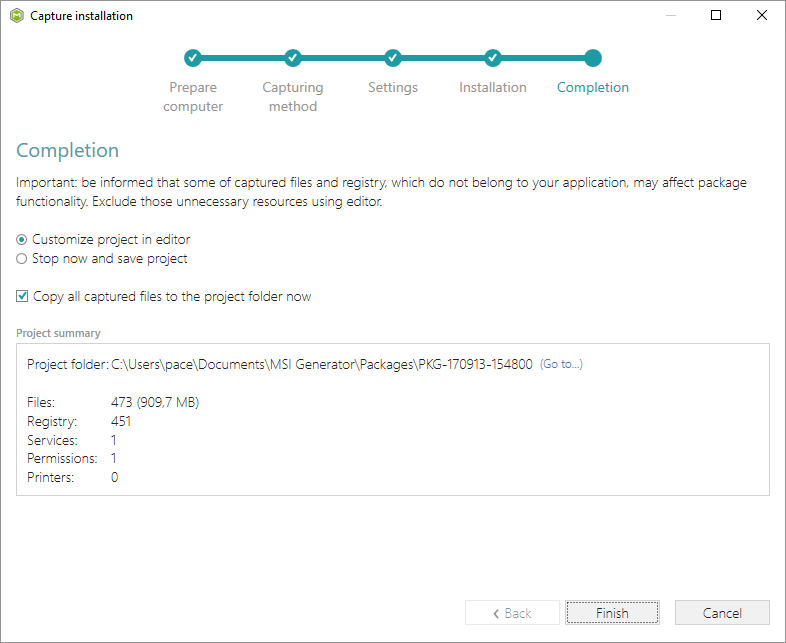
- Leave selected both the Customize project in editor and Copy all captured files to the project folder now options and click Finish.
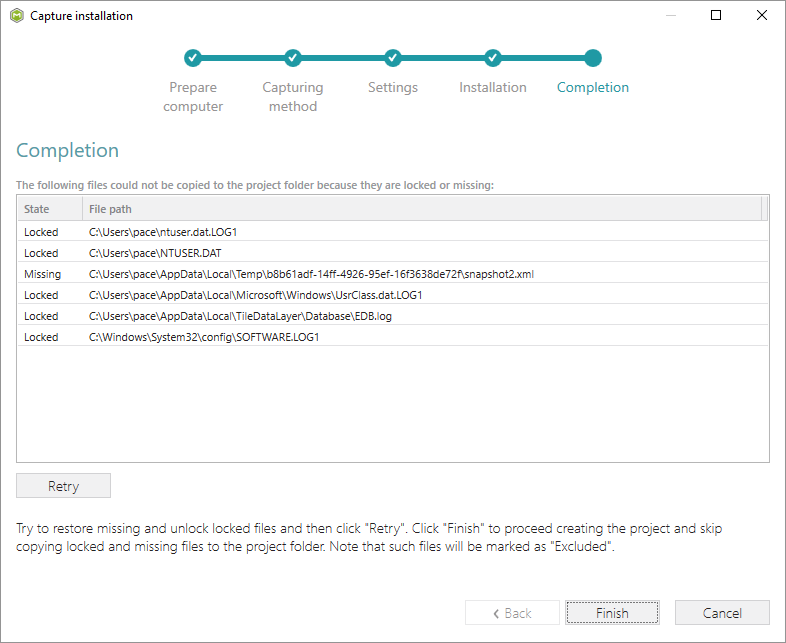
- If some of captured files are locked or missing and as result they could not be copied to the project folder, they will be displayed as illustrated below. Usually, the displayed files are system noise and do not refer to the captured application.
Click Finish to continue with skipping locked and missing files. Note that such files will be automatically marked as ‘Excluded’ in your project.
- Once the project is opened, it is strongly recommended to review the captures resources (files, registry, services, etc.) and Exclude those items, which do not belong to the captured application. Such accidentally captured resources are also called system noise and it could be Windows Updates, Search indexing, Antivirus software and so on.
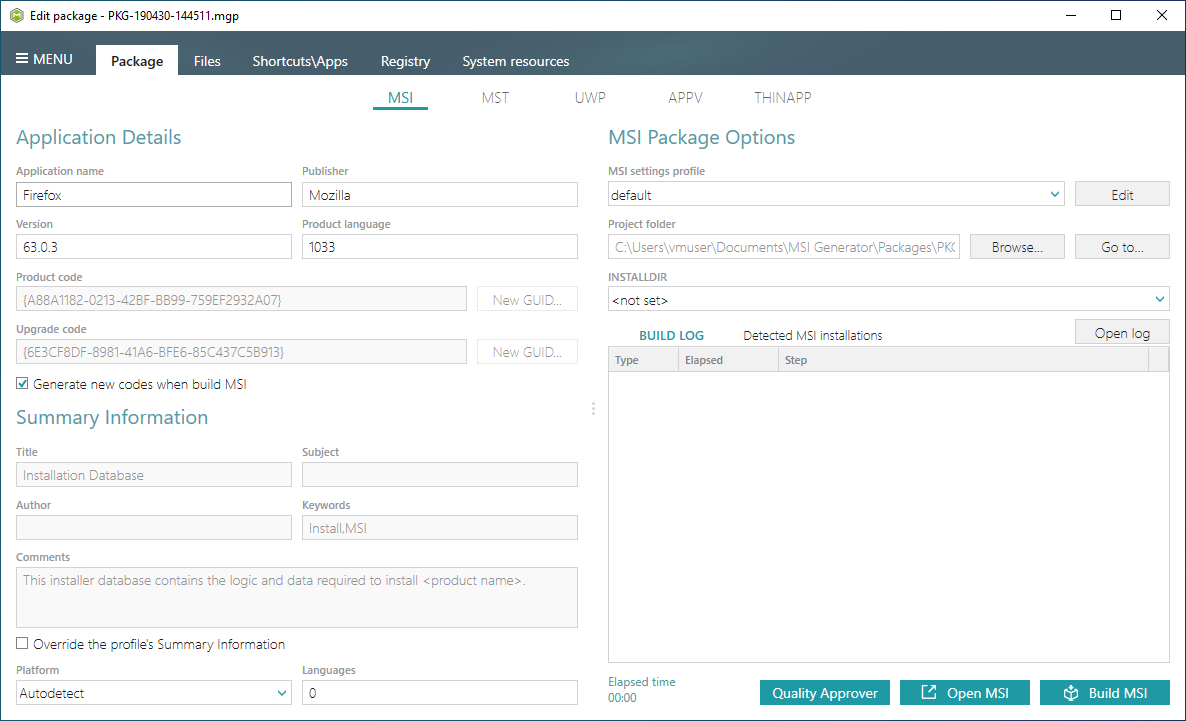
- Specify product information, compression type, advertising tables, active setup and other MSI settings:
- To generate an MSI package navigate to the Package > MSI tab and click Build MSI.
Note
Since version 5.3.2 PACE Suite builds MSI packages with the UTF-8 code page of a database. A package with this encoding is capable of installing resources with extended characters in the titles.
- Find your package in the “
MSI” subfolder of the project folder. To open the project folder, click Go to…, located next to the Project folder field.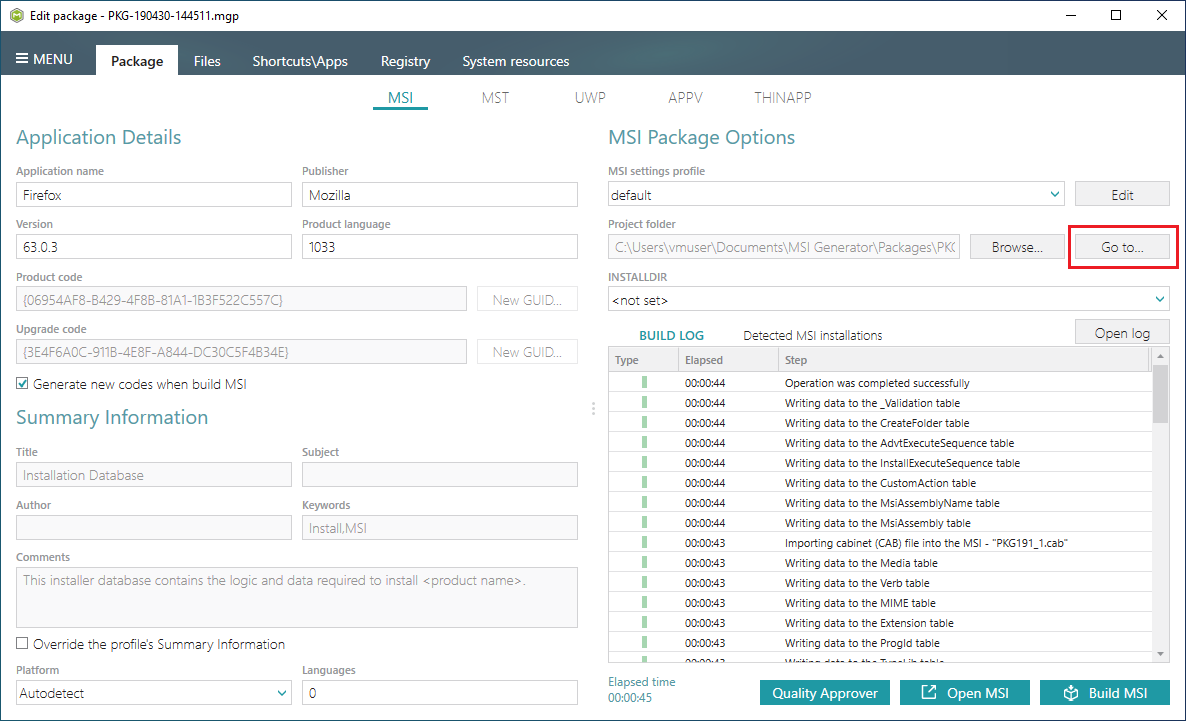
Note
PACE Suite covers the whole range of application packaging tasks - learn more.
Try PACE Suite for free - 30 days no obligations unlimited trial with all functions unlocked.
